
How to Create and Manage Holidays
The ability to manage holidays for each office is a very useful tool for an organization operating across multiple locations. Use this option to customize the holidays for each office within your organization.
From the Home page, click Admin, then select Organization from the drop-down list that appears. This will open the Organization menu (as shown in the screenshot below).
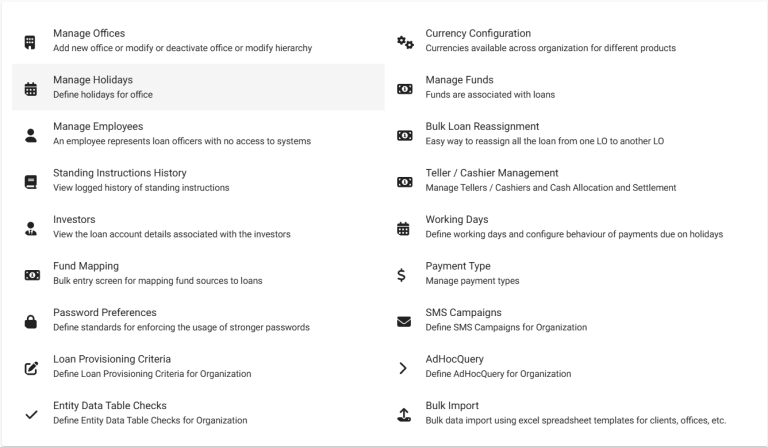
In this menu, select Manage Holidays. This will display the following:

Add Holidays
This option allows you to create new holidays for each office in your organization. Click the blue Create Holiday button located at the top right of the screen.
This will open a new page:
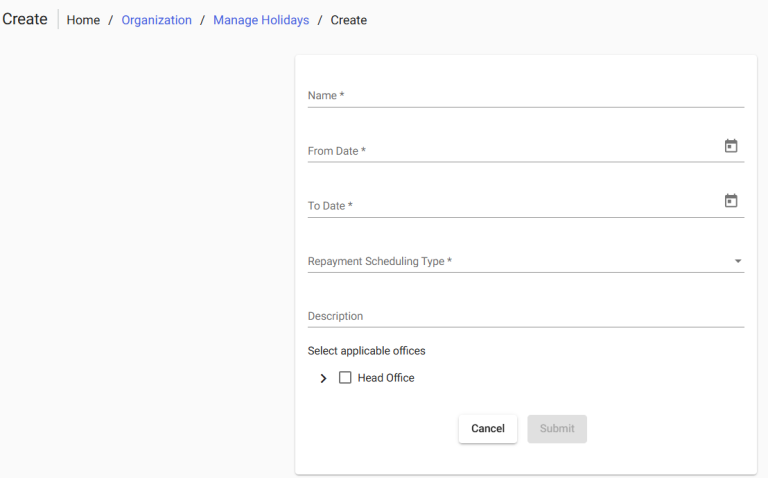
2. Complete the required fields:
a. Name
b. Start Date
c. End Date
d. Repayment Scheduling Type
e. Repayments Rescheduled To
f. Description (this field is not mandatory, but it is available. You may also edit this holiday later to add a description or modify the existing one).
3. Select the office(s) affected by the holiday
Click the small ‘>’ icon next to Offices Covered. This will open a list of offices from which you can choose. Check the boxes to select the offices to be included.
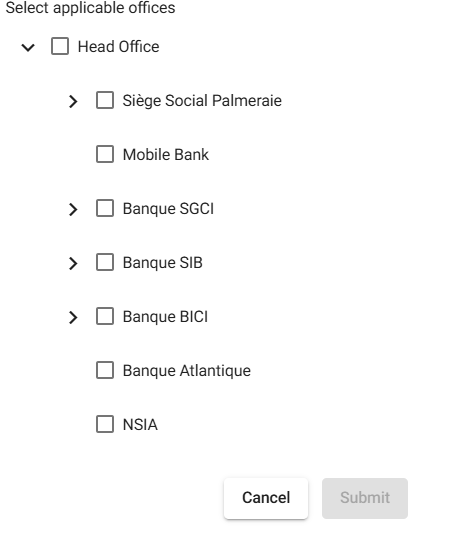
4. Click Submit.
View Holidays
Once you have selected Manage Holidays, a table displaying all holidays will appear. The following fields will be visible:
- Holiday Name
- Start Date
- End Date
- Working Day Alternative
- Status – Active or Deleted
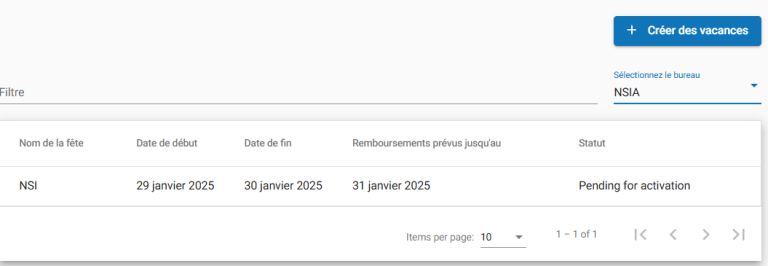
Tip: Use the Filter by Name field to find the holiday you are looking for. Begin typing the holiday name and Phenix will automatically filter the results.
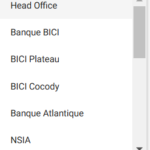
You can also filter holiday results by using the drop-down menu located in the center of the Manage Holidays screen to select an office.
Edit/Delete a Holiday
To edit a holiday:
- Click a holiday in the list to view additional details.
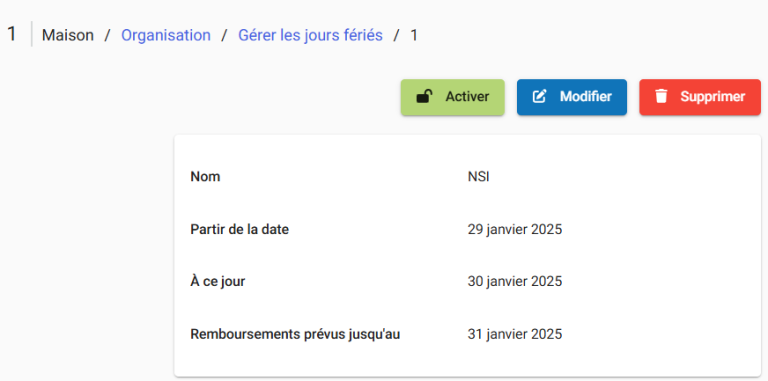
- Click the blue Edit button at the top right of the page. This will open a page where you can change the name of the selected holiday. You can also add or modify the description of the selected holiday.
To delete a holiday:
- Click the red Delete button at the top right of the screen.
- Click Confirm.
