
Password Preferences
How to Set the System-Wide Password Policy?
This feature allows you to define password preferences by simply selecting one of the two available options. Once a preference has been set, users will be able to create passwords that comply with the specified requirements.
The two available preferences are:
- One option is simple but less secure.
- The second option provides stronger password security.
From the Home screen, select Admin, then Organization from the drop-down menu. This will open the Organization menu. Select Password Preferences to configure the password settings.
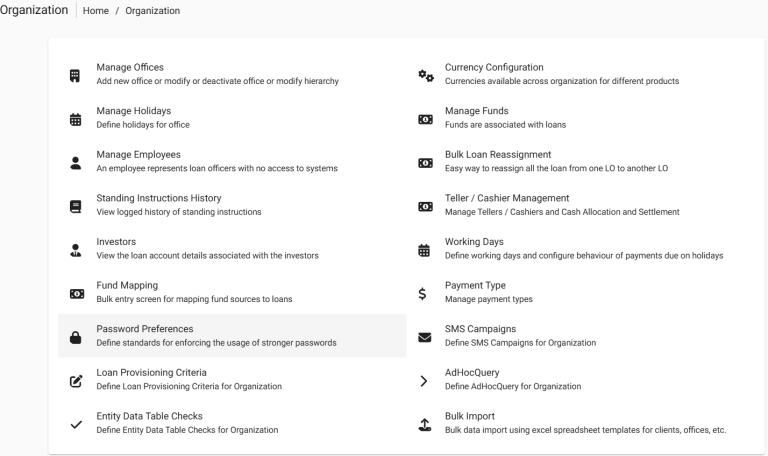
This will open the Password Preferences page.

Configuring Password Preferences
On this page, two password preferences are available:
1. Password must be at least 1 character and no more than 50 characters long
This means that the password provided must meet the following requirements:
- Must contain at least 1 character
- If more than one character is used, the password must not exceed 50 characters
- Characters may be of any type (letters, numbers, and symbols), except the ‘&’ symbol
2. Password must be at least 6 characters and no more than 50 characters long, include at least one uppercase letter, one lowercase letter, one number, and contain no spaces
This means that the password provided must meet the following requirements:
- Must contain at least 6 characters
- If more than 6 characters are used, the password must not exceed 50 characters
- Must include at least one uppercase letter
- Must include at least one lowercase letter
- Must include at least one number
- Must not contain spaces (no spaces between characters)
- Characters may be of any type (letters, numbers, and symbols), except the ‘&’ symbol
Select your preferred option, then click the Submit button.
