How to Create a Payment Type
For all payment types, you can specify the forms of payment that you accept.
From the Home screen, select Admin, then Organization from the drop-down menu. This will open the Organization menu. Select Payment Types to specify the payment types that you accept.

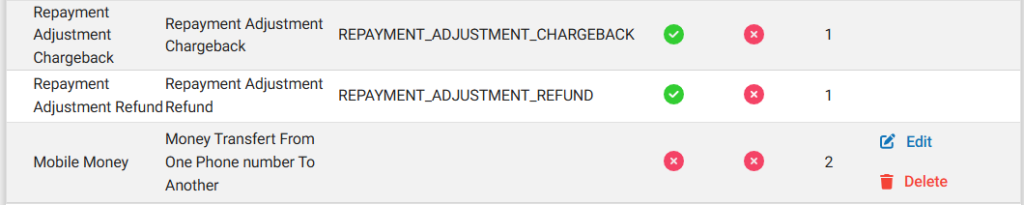
This will open the Payment Types page, which displays a list of payment types, their description, their position, and indicates whether they are cash payments or not.
Add a Payment Type
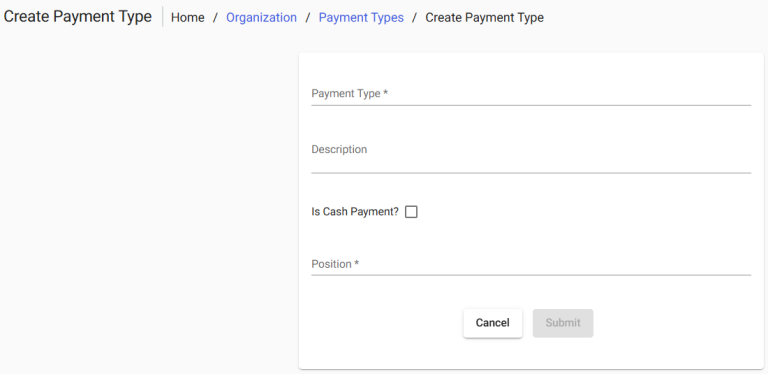
Click the blue Create Payment Type button at the top right of the page. This will open the Create Payment Type page:
To create a payment type, follow these steps:
- Payment Type – Enter an appropriate name of your choice.
Example: the payment type is Mobile Money. - Description – Enter a description of the specified payment type.
- Cash Payment? – Select this checkbox if the payment type is a cash payment.
In the example below, the checkbox is left unchecked because the payment is not a cash payment. - Position – Enter the position number for display in the drop-down menu.
Review your entries and, when finished, click the Submit button.
Edit a Payment Type
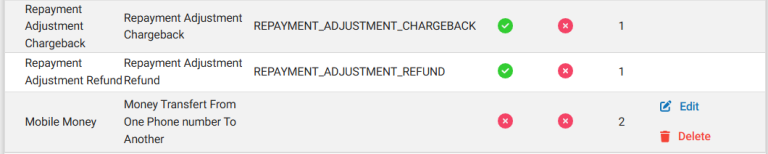
Click the Edit button to the right of the payment type that you wish to modify.
This will open the Edit Payment Type page, where you can modify the details of the payment type.
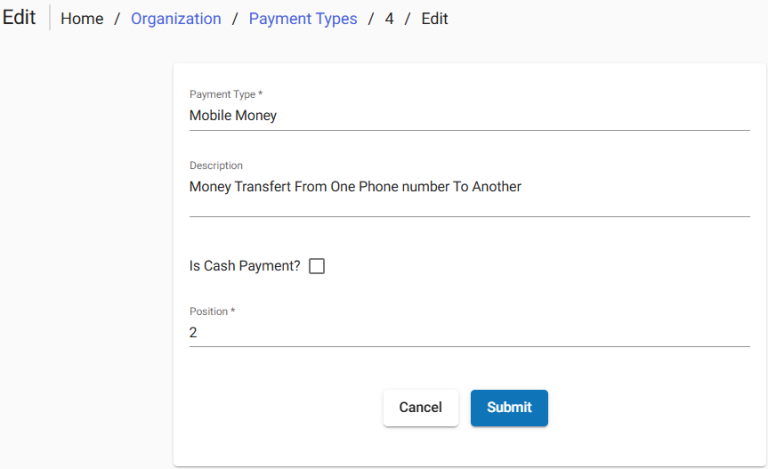
Once you have finished editing the payment type, click the Submit button.
Delete a Payment Type
To delete a payment type, click the button located at the far right of the corresponding payment type.
Then confirm the deletion when prompted.